Computing
Spreadsheets
Spreadsheets
Cells, rows and columns, entering data, simple formulas with SUM and AVERAGE, and building a class marks sheet.
What is a spreadsheet?
A spreadsheet is a computer program for working with numbers and lists. It looks like a huge sheet of squared paper on the screen. You type words and numbers into the squares, and the program can add them up, find averages, sort them and draw charts, all by itself.
Before computers, shopkeepers, teachers and accountants did all this in big paper ledgers with a pen and a calculator. One mistake meant rubbing out and redoing a whole column. A spreadsheet redoes the sums for you the moment you change a number.
Spreadsheets are used for:
- a teacher's class marks and averages
- a shop's daily sales and stock
- a family budget
- a football league table
- a school's fee records
- scientists' experiment results
The best-known spreadsheet programs are Microsoft Excel, Google Sheets (free, works in a web browser and on phones) and LibreOffice Calc (free to download). They all work in almost the same way, so what you learn in one works in the others.
In this book you will learn the parts of a spreadsheet, how to enter data, how to write simple formulas, and finally how to build a marks sheet for your class.
2 / 42
Where spreadsheets came from
The word "spreadsheet" is older than computers. Accountants used large paper sheets ruled into rows and columns, which were "spread" open across two facing pages of a ledger. Every figure was added by hand.
In 1979, two Americans, Dan Bricklin and Bob Frankston, wrote VisiCalc, the first spreadsheet program for a personal computer. Bricklin was a business student who was tired of recalculating whole tables each time one number changed. VisiCalc did the recalculating itself. It was so useful that people bought computers just to run it.
Lotus 1-2-3 followed in 1983, and Microsoft Excel in 1985. Excel became the most widely used spreadsheet in the world. In 2006 Google launched Google Sheets, which runs in a web browser so several people can edit the same sheet at once. LibreOffice Calc is a free program you can install on any computer.
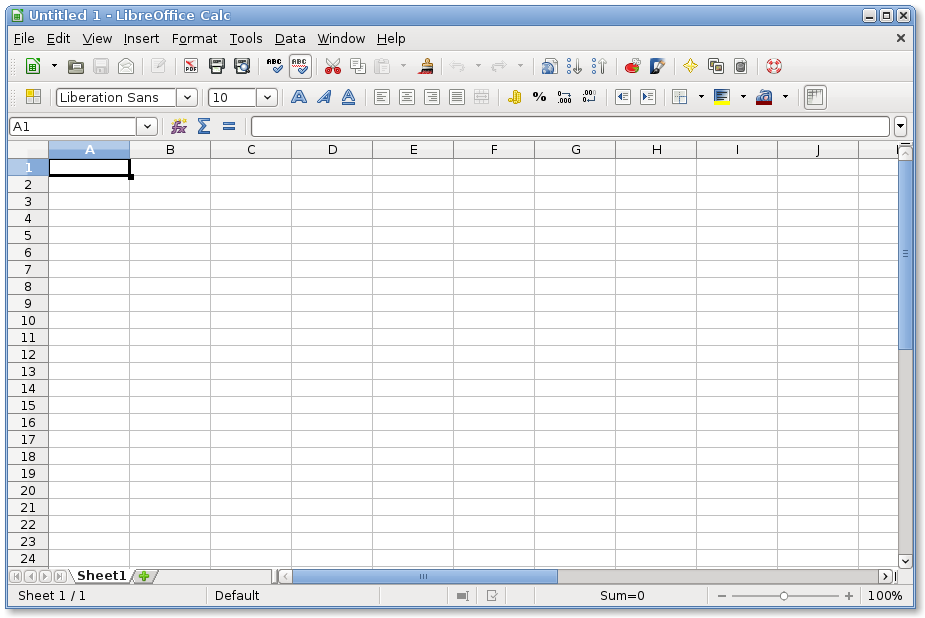
Whatever program you use, the ideas are the same: a grid of cells, data in the cells, and formulas that recalculate by themselves.
3 / 42
Rows, columns and cells
Open a spreadsheet and you see a grid.

Columns run up and down. Each column has a letter at the top: A, B, C … Z, then AA, AB and so on. Think of the columns of a building, standing upright.
Rows run across. Each row has a number on the left: 1, 2, 3 … down to many thousands. Think of rows of seats in a cinema.
A cell is one square, where a column and a row cross. It is named by its column letter followed by its row number: A1, B3, D10. The letter always comes first.
So cell C4 is in column C, row 4. Cell A1 is the very first cell, top left.
Everything you do in a spreadsheet happens in cells. You type into a cell, you add up cells, you copy cells.
Try this Draw a grid six columns wide (A to F) and six rows deep (1 to 6). Shade cells B2, D5, A6 and F1.
4 / 42
The parts of the screen
Besides the grid, a spreadsheet screen has a few important parts. Learn their names so you can follow instructions.
The active cell is the cell you have clicked. It has a thick border. Whatever you type goes into it.
The name box (top left, above the grid) shows the address of the active cell, such as "B3". You can also type an address here and press Enter to jump to that cell.
The formula bar (next to the name box) shows what is really inside the active cell. This matters because a cell might show 45 but contain a formula like =A1+A2. The formula bar reveals the truth.
Column letters and row numbers run along the top and down the left. Clicking a letter selects the whole column. Clicking a number selects the whole row.
Sheet tabs at the bottom let you have several sheets in one file, like pages in an exercise book. A teacher might have one sheet per class.
The toolbar at the top has buttons for bold, colours, borders, sorting and charts.
Try this Open any spreadsheet program. Click on cell D7. Check that the name box says D7. Type your name and press Enter.
5 / 42
Moving around
You can move around a spreadsheet in several ways. Practise them until they are automatic.
With the mouse: click any cell to make it active. Use the scroll bars or the mouse wheel to move down or across.
With the keyboard:
- Arrow keys move one cell up, down, left or right.
- Enter moves down one cell (after you have typed something).
- Tab moves right one cell. This is useful when typing a row of data: type, Tab, type, Tab.
- Shift + Tab moves left.
- Ctrl + Home jumps to A1.
- Page Down and Page Up move a screen at a time.
Jumping with the name box: type the cell address, for example "H25", in the name box and press Enter.
Selecting a block of cells: click the first cell, hold the mouse button, drag to the last cell, and release. The block turns a different colour. A block like this is called a range, and it is written with a colon: A1:A5 means A1, A2, A3, A4 and A5. B2:D4 means the block from B2 across and down to D4 (nine cells).
Ranges are the key to formulas, which we will meet soon.
6 / 42
Entering data: text
Data is any information you type into a cell. There are three main kinds: text, numbers and formulas. We start with text.
Text is words: names, subjects, days of the week, places. To enter text, click a cell, type, and press Enter or Tab.
A spreadsheet lines text up on the left of the cell by default. That is one way to tell at a glance that a cell contains text.
Rules for tidy text
- Put headings in the first row: Name, Maths, English, Total.
- Keep one kind of thing in each column. Do not mix names and marks in the same column.
- Be consistent. If you write "Abena Mensah" in one cell, do not write "Mensah, Abena" in another.
- Avoid extra spaces at the start or end.
If text is too long for the cell, it spills into the next cell if that one is empty, or gets cut off if it is not. Widen the column by dragging the line between two column letters.
Try this In row 1, type these headings in A1 to E1: Name, Maths, English, Science, Total. Then type five classmates' names in A2 to A6.
7 / 42
Entering data: numbers
Numbers are what spreadsheets are built for. Type a number into a cell and press Enter. The spreadsheet lines numbers up on the right of the cell. Left means text, right means number.
Rules for numbers
- Type only the digits and a decimal point if needed: 45, 72.5, 1200.
- Do not type units or words with the number. "45 marks" or "GH₵45" becomes text, and text cannot be added up. Put the unit in the heading instead: "Price (GH₵)".
- Do not type thousands separators (1,200). Type 1200 and let the program format it later.
- Negative numbers get a minus sign: -15.
Formatting numbers. Once numbers are in, you can change how they look without changing their value. Select the cells and use the toolbar to:
- show two decimal places (45.00)
- add a thousands separator (1,200)
- show as a percentage (75%)
- show as money
The formula bar always shows the true value underneath the formatting.
Common error: a column that will not add up. If the numbers are lined up on the left, they have been stored as text. Retype them as plain digits.
Try this Type marks between 0 and 100 for your five classmates in Maths, English and Science (B2 to D6).
8 / 42
Editing, deleting and undo
Mistakes are normal. A spreadsheet makes them easy to fix.
To replace what is in a cell: click it and simply type the new content. The old content disappears.
To edit part of what is in a cell: double-click the cell, or click it and press F2, or click in the formula bar. Then use the arrow keys to move within the text and fix it. Press Enter to finish.
To delete a cell's content: click it and press Delete. The cell becomes empty. (The cell itself stays; only the content goes.)
To delete a whole row or column: right-click the row number or column letter and choose Delete. The rows below or columns to the right shift up or left to fill the gap.
To insert a row or column: right-click a row number or column letter and choose Insert. A blank row appears above, or a blank column to the left.
Undo is your best friend. If anything goes wrong, press Ctrl + Z. Press it again to undo more steps. Ctrl + Y redoes.
Save often with Ctrl + S. Google Sheets saves automatically; Excel and Calc need you to do it.
Try this Change one of your classmates' Maths marks. Then undo the change. Then redo it.
9 / 42
Recap: the grid and data
- A spreadsheet is a grid for working with numbers and lists.
- Columns are up-and-down, named with letters. Rows are across, named with numbers.
- A cell is named by its column letter then row number: B3.
- A range is a block of cells, written with a colon: A1:A5.
- The name box shows the active cell's address. The formula bar shows what is really inside it.
- Text lines up on the left; numbers line up on the right.
- Type numbers as plain digits. No units, no commas, no words.
- Edit with a double-click or F2. Delete with the Delete key. Insert or delete rows and columns with a right-click.
- Ctrl + Z undoes. Ctrl + S saves.
Quick check
- What is the address of the cell in column F, row 12?
- How many cells are in the range B2:C5?
- A cell shows "GH₵45" lined up on the left. Why will it not add up?
- Which key moves you one cell to the right while entering data?
10 / 42
What is a formula?
Here is where a spreadsheet becomes more than paper. A formula is an instruction that tells a cell to work something out from other cells.
Every formula starts with an equals sign (=). That is how the spreadsheet knows you want a calculation, not text.
Type this into cell E2:
=B2+C2+D2
Press Enter. The cell E2 now shows the total of the three marks in B2, C2 and D2. You did not type the answer. The spreadsheet worked it out.
Now the magic: change the number in B2. Watch E2. It changes by itself. A formula is live. It always shows the current answer.
Click on E2 and look at the formula bar. The cell shows a number, but it contains the formula =B2+C2+D2.
The four basic signs
- + add
- - subtract
- ***** multiply (the star, Shift + 8)
- / divide (the forward slash)
So =B2*2 doubles the mark in B2. =B2/2 halves it. =100-B2 shows how many marks were lost.
11 / 42
Order of operations in formulas
A spreadsheet follows the same order of operations you learned in maths: BODMAS. Brackets first, then Orders (powers), then Division and Multiplication, then Addition and Subtraction.
So =2+3*4 gives 14, not 20. The multiplication happens first: 3 × 4 = 12, then 2 + 12 = 14.
If you want the addition first, use brackets: **=(2+3)4* gives 20.
This matters in real formulas.
Worked example Abena's three marks are in B2, C2 and D2. She wants the average without using the AVERAGE function.
Wrong: =B2+C2+D2/3. Only D2 is divided by 3, and then the others are added. The answer is far too big.
Right: =(B2+C2+D2)/3. The brackets add the three marks first, then divide the total by 3.
Worked example 2 A shop gives a 10% discount. Price in B2. The discounted price is =B2-B2*10/100, or more simply =B2*0.9. Both work because multiplication and division happen before subtraction.
Powers use ^: =B2^2 squares the number in B2.
Try this Work out by hand, then check in a spreadsheet: =10-4/2, =(10-4)/2, =23+45, =2*(3+4)*5.
12 / 42
Cell references, not numbers
Compare these two formulas in cell E2:
=45+62+58 (the actual numbers) =B2+C2+D2 (the cell addresses)
Both give the same answer today. But if Abena's Maths mark is corrected from 45 to 54, the first formula still says 165 and is now wrong. The second formula updates itself to 174 and is right.
Using a cell's address instead of its value is called using a cell reference. It is the whole point of a spreadsheet. The rule is:
Never type a number into a formula if that number already lives in a cell. Refer to the cell instead.
Worked example Kofi sells sachet water. Cell A2 holds the price per bag (GH₵6). Cell B2 holds the number of bags sold today (15). In C2 he wants the money taken.
Wrong: =615. If the price goes up, he must retype it. Right: **=A2B2. If the price in A2 changes to 7, C2 updates to 105 by itself.
Pointing instead of typing. When you type a formula, instead of typing "B2" you can click cell B2 and the address appears. Type +, click C2, type +, click D2, press Enter. Fewer typing mistakes.
13 / 42
Worked example: a market budget
Ama's mother gives her GH₵50 to buy things at the market. Ama plans it in a spreadsheet.

She sets up these columns: A Item, B Price each (GH₵), C How many, D Cost (GH₵).
| A | B | C | D | |
|---|---|---|---|---|
| 1 | Item | Price | Qty | Cost |
| 2 | Tomatoes (bowl) | 12 | 2 | =B2*C2 |
| 3 | Onions | 8 | 1 | =B3*C3 |
| 4 | Fish | 15 | 1 | =B4*C4 |
| 5 | Pepper | 3 | 2 | =B5*C5 |
Each Cost cell multiplies price by quantity. D2 shows 24, D3 shows 8, D4 shows 15, D5 shows 6.
In D6 she adds them all: =D2+D3+D4+D5, which shows 53. That is more than GH₵50.
She changes C2 from 2 to 1. D2 becomes 12 and D6 instantly becomes 41. Now she is within budget, with GH₵9 to spare.
She did not recalculate anything by hand. That is the power of a formula.
14 / 42
Functions: ready-made formulas
Adding four cells with plus signs is fine. Adding forty is painful: =D2+D3+D4+D5+D6… To save typing, spreadsheets have functions: ready-made formulas with a name.
A function looks like this:
=NAME(range)
- It starts with =, like every formula.
- Then the name of the function, in capitals (SUM, AVERAGE, MAX…).
- Then brackets containing the cells to work on, usually a range.
The two functions you will use most are SUM (adds up) and AVERAGE (finds the mean). We will look at each in turn.
There are hundreds of others. A few useful ones:
- MAX(range) – the biggest number
- MIN(range) – the smallest number
- COUNT(range) – how many cells contain numbers
- ROUND(cell, 0) – round to a whole number

15 / 42
SUM: adding up
SUM adds every number in a range.
=SUM(B2:B6)
This adds B2, B3, B4, B5 and B6. It is exactly the same as =B2+B3+B4+B5+B6, but shorter, and it works just as easily for a thousand cells: =SUM(B2:B1001).
How to type it
- Click the cell where you want the total.
- Type =SUM(
- Drag across the cells you want to add. The range appears in the formula.
- Type ) and press Enter.
Worked example Abena's marks are in B2 (Maths 68), C2 (English 74) and D2 (Science 59). In E2 she types =SUM(B2:D2). E2 shows 201. Notice the range goes across a row this time, from B to D.
Several ranges at once. Separate them with commas: =SUM(B2:B6, D2:D6) adds two columns together.
The AutoSum button. Most spreadsheets have a Σ (sigma) button. Click the cell under a column of numbers, click Σ, and SUM is written for you. Check that it chose the right range before pressing Enter.
Try this Put a total for each classmate in column E using SUM. Then put a class total for Maths in B7.
16 / 42
AVERAGE: finding the mean
AVERAGE adds up the numbers in a range and divides by how many there are. This is the mean, which you learned in maths.
=AVERAGE(B2:B6)
If B2 to B6 hold 68, 45, 90, 72 and 55, the function adds them (330) and divides by 5. The cell shows 66.
Worked example A teacher wants each pupil's average across three subjects. Abena's marks are B2 = 68, C2 = 74, D2 = 59. In F2 the teacher types =AVERAGE(B2:D2). F2 shows 67 (because 201 ÷ 3 = 67).
Decimal answers. Averages are often not whole numbers. 68 + 45 + 90 = 203, ÷ 3 = 67.666… Use the toolbar to show one decimal place (67.7), or wrap it: =ROUND(AVERAGE(B2:D2), 1).
Empty cells. AVERAGE ignores empty cells. If a pupil missed Science and D2 is blank, =AVERAGE(B2:D2) divides by 2, not 3. That may be what you want, or it may not. A cell containing 0 is counted.
Try this Add an Average column (F) for every classmate. Then find the class average for Maths in B8, under the total.
17 / 42
MAX, MIN and COUNT
Three more functions work exactly like SUM and AVERAGE: a name, brackets, and a range.
MAX finds the largest number in the range. =MAX(B2:B11) shows the highest Maths mark in the class.
MIN finds the smallest. =MIN(B2:B11) shows the lowest Maths mark.
COUNT tells you how many cells in the range contain numbers. =COUNT(B2:B11) shows how many pupils have a Maths mark. If two were absent and their cells are empty, it shows 8, not 10.
Worked example A teacher has marks in B2:B31 for a class of 30, but some pupils missed the test. She wants to know how many sat it, and the range of marks.
- Sat the test: =COUNT(B2:B31) → 27
- Highest: =MAX(B2:B31) → 94
- Lowest: =MIN(B2:B31) → 38
- Range (highest minus lowest): =MAX(B2:B31)-MIN(B2:B31) → 56
Notice the last one: you can put functions inside a formula and do arithmetic with them.
COUNTA counts cells that contain anything at all, including text. =COUNTA(A2:A31) counts the names, so it gives the class size even when marks are missing.
Try this Under your marks table, add rows for Highest, Lowest and Number sat for each subject.
18 / 42
Percentages in a spreadsheet
Marks are often out of different totals: a Maths test out of 50, a Science test out of 40. To compare them, convert to percentages.
Percentage = mark ÷ total × 100
Worked example Kofi scored 38 out of 50 in Maths. The mark is in B2. In C2 type =B2/50*100. C2 shows 76.
Ama scored 31 out of 40 in Science. Mark in D2. In E2: =D2/40*100 → 77.5.
Now the two marks can be compared fairly: Ama did slightly better.
Using the percentage format. Instead of multiplying by 100, you can type =B2/50 (which gives 0.76) and then click the % button on the toolbar. The cell shows 76%. The value is still 0.76 underneath; only the display changed. Either way works, but do not do both, or you will get 7600%.
Finding a percentage of a number. 15% of the price in B2: =B2*15/100 or =B2*0.15.
Percentage change. Last year's fee in B2, this year's in C2. The increase as a percentage: =(C2-B2)/B2*100.
Try this Make a column that converts each of your classmates' Maths marks (out of 100) to a mark out of 20, using =B2/100*20 or =B2/5.
19 / 42
Copying a formula down
You have a working formula in E2. Do you have to type it again in E3, E4, E5 and E6? No. You copy it, and the spreadsheet is clever about it.
The fill handle
- Click E2, the cell with the formula.
- Look at the bottom-right corner of the cell. There is a small square. This is the fill handle.
- Move the mouse onto it until the pointer becomes a thin cross.
- Click and drag down to E6. Release.
Now click E3 and look at the formula bar. It says =SUM(B3:D3), not B2:D2. The spreadsheet moved the row numbers to match the new row. E4 says =SUM(B4:D4), and so on. Every row has its own correct total.
This is called a relative reference. The formula does not mean "B2 to D2 exactly". It means "the three cells to my left". When you copy it down, it keeps meaning that.
Double-click trick. Double-click the fill handle and the formula fills down as far as the data goes in the column to the left.
Copy and paste works too. Ctrl + C on E2, select E3:E6, Ctrl + V.
Try this Fill the Total and Average formulas down for all your classmates.
20 / 42
Recap: formulas and functions
- A formula starts with = and works something out. It is live: change the inputs and the answer updates.
- Signs: + − * / for add, subtract, multiply, divide.
- Use cell references (B2) not typed numbers, so the formula stays right when data changes.
- A function is a named formula: =SUM(B2:B6), =AVERAGE(B2:D2), =MAX(...), =MIN(...).
- SUM adds a range. AVERAGE adds and divides by how many numbers there are.
- Use the fill handle (small square at the cell's corner) to copy a formula down. Row numbers adjust automatically: a relative reference.
- The formula bar shows the real formula behind a cell.
Quick check
- What is wrong with this formula: SUM(B2:B6)?
- B2:B4 hold 10, 20 and 60. What does =AVERAGE(B2:B4) show? And =SUM(B2:B4)?
- You copy =B2*C2 from D2 down to D5. What does D5 contain?
- Why is =A2B2 better than =615?
21 / 42
Try this: formula practice
Set up this small sheet and then write the formulas. Check each answer by hand.
| A | B | C | |
|---|---|---|---|
| 1 | Item | Price | Qty |
| 2 | Exercise book | 4 | 6 |
| 3 | Pen | 2 | 3 |
| 4 | Ruler | 3 | 1 |
| 5 | Maths set | 15 | 1 |
| 6 | Bag | 45 | 1 |
Write a formula for each:
- In D2, the cost of the exercise books (price × quantity). Fill it down to D6.
- In D7, the total cost of everything.
- In D8, the average price of one item type (use column B).
- In D9, the most expensive single item.
- In D10, the cheapest.
- In D11, how many different items there are (count column B).
- In D12, how much change from GH₵100.
- In D13, the total cost if everything had a 10% discount.
- In E2, each item's share of the total as a percentage: cost ÷ grand total × 100. (You will need to type the total's cell, D7, into every row for now.)
- Change the quantity of pens to 5. Which cells changed? Which did not?
Answers to check: D7 = 93, D8 = 13.8, D9 = 45, D10 = 2, D11 = 5, D12 = 7, D13 = 83.7.
22 / 42
Project: a class marks sheet
Now you will build something real: a marks sheet for a class, like the one your teacher keeps.

Step 1: Plan the columns.
- A: Name
- B: Maths
- C: English
- D: Science
- E: Social Studies
- F: Computing
- G: Total
- H: Average
- I: Position (we will add this later)
Step 2: Type the headings in row 1. Make them bold (Ctrl + B) so they stand out.
Step 3: Type ten pupils' names in A2 to A11. Use real classmates or invent them: Ama Owusu, Kofi Mensah, Abena Asante, Kwame Boateng, and so on.
Step 4: Type marks out of 100 for each pupil in each subject. Use Tab to move across and Enter to go to the next row. Make up sensible marks between 30 and 95.
Save the file as Class Marks before going on. The next pages add the calculations.
23 / 42
Project: totals and averages
With the names and marks in place, add the working columns.
Step 5: Totals. In G2 type =SUM(B2:F2) and press Enter. Drag the fill handle from G2 down to G11. Every pupil now has a total out of 500.
Step 6: Averages. In H2 type =AVERAGE(B2:F2). Fill down to H11. Format column H to one decimal place.
Step 7: Subject totals and averages. Leave row 12 blank. In A13 type "Class average". In B13 type =AVERAGE(B2:B11). Drag the fill handle across from B13 to F13. Notice that this time the column letters change (C2:C11, D2:D11…) while the row numbers stay. Relative references work sideways too.
Step 8: Highest and lowest. In A14 type "Highest". In B14 type =MAX(B2:B11) and fill across. In A15 type "Lowest" with =MIN(B2:B11).
Check your work
- Pick one pupil and add their five marks on paper. Does it match column G?
- Does any class average look impossible (above 100, below 0)? If so, a mark was typed wrongly.
- Click any cell in G or H and read the formula bar. Is the range right?
24 / 42
Project: sorting and positions
A teacher often wants to know who came first. Spreadsheets can sort the rows.
Step 9: Sort by total.
- Select the whole block of pupil data, from A2 to H11. Include every column, or the names will separate from their marks.
- Find Sort on the Data menu.
- Choose to sort by column G (Total), largest to smallest (descending).
- Click OK.
The pupil with the highest total is now in row 2, the next in row 3, and so on.
Step 10: Positions. In I2 type 1, in I3 type 2, then select I2:I3 and drag the fill handle to I11. The spreadsheet continues the pattern 3, 4, 5…
Careful: if you later change a mark, the positions will not update by themselves, because they are typed numbers, not formulas. You would need to sort again. (There is a function called RANK that does this automatically; your teacher can show you when you are ready.)
Sorting by name. To put the class back in alphabetical order, sort A2:I11 by column A, A to Z.
Try this Sort by Maths to see who is top in Maths. Then sort back by name.
25 / 42
Project: making it look good
A clear sheet is easier to read and harder to make mistakes in. Spend five minutes on appearance.
Headings. Make row 1 bold and give it a light fill colour. Centre the text.
Column widths. Double-click the line between column letters A and B to fit the longest name. Make the mark columns narrower so the whole sheet fits on screen.
Borders. Select A1:I11 and add thin borders around all cells. The grid lines on screen do not print unless you add borders.
Number formats. Column H (Average) to one decimal place. Everything else to whole numbers.
Freeze the headings. Click cell A2 and choose Freeze Panes (View menu). Now row 1 stays visible when you scroll down a long class list.
Highlight the key numbers. Give the Total and Average columns a different light colour.
Conditional formatting (extra). Select the marks B2:F11 and set a rule: cells below 50 turn red. Now weak marks jump out without anyone searching for them.
Print preview. Check how it would look on paper. Landscape orientation usually fits a marks sheet better.
Save again. You now have a sheet a real teacher could use.
26 / 42
Recap: the marks sheet project
What you have built:
- Row 1: bold headings – Name, five subjects, Total, Average, Position.
- Rows 2 to 11: ten pupils with marks.
- Column G: =SUM(B2:F2), filled down.
- Column H: =AVERAGE(B2:F2), filled down, one decimal place.
- Row 13: class averages, =AVERAGE(B2:B11), filled across.
- Rows 14 and 15: =MAX and =MIN for each subject.
- Sorting by Total, largest first, to find positions.
- Formatting: bold, borders, column widths, frozen headings, conditional colour.
Skills you used: entering text and numbers, writing formulas, using SUM, AVERAGE, MAX and MIN, filling down and across, sorting a block, formatting.
Quick check
- Why must you select all the columns before sorting?
- What is the difference between the positions in column I and the totals in column G?
- A class average for English shows 142. What has gone wrong?
- What happens to the formulas in column G when you insert a new pupil in row 6?
27 / 42
Charts: pictures of your data
Numbers in a grid are hard to compare at a glance. A chart turns them into a picture.
Making a bar chart of class averages
- Select the subject headings B1:F1.
- Hold Ctrl and also select the class averages B13:F13. (Holding Ctrl lets you select two separate ranges.)
- Click Insert → Chart and choose a column or bar chart.
- A chart appears. Give it a title: "Class average by subject".
Now you can see immediately which subject the class finds hardest.
Making a bar chart for one pupil Select A2:F2 (one pupil's name and marks) and insert a column chart. You see that pupil's strengths and weaknesses.
Which chart?
- Column or bar chart: comparing amounts (marks, sales, rainfall by month).
- Line chart: showing change over time (a pupil's marks across three terms).
- Pie chart: showing parts of a whole (how a budget is split). Use only when the parts add up to 100%.
A chart updates automatically when the numbers change, just like a formula.
Try this Make a column chart of the Maths marks for all ten pupils.
28 / 42
Spreadsheets in everyday life
The marks sheet is one use. Here are others you will meet in Ghana, with the formulas they need.
Shop stock. Columns: Item, Bought, Sold, Left. Left = Bought − Sold: =B2-C2. A quick look shows what needs reordering.
Daily sales. Columns: Day, Sales (GH₵). Weekly total =SUM(B2:B8). Best day =MAX(B2:B8). Average day =AVERAGE(B2:B8).
Family budget. Columns: Item, Planned, Actual, Difference =B2-C2. A negative difference means overspending.
Football league table. Columns: Team, Played, Won, Drawn, Lost, Goals For, Goals Against, Goal Difference =F2-G2, Points =C2*3+D2. Sort by Points.
Trotro fares. Columns: Route, Distance (km), Fare. Fare per km =C2/B2, to compare which route is better value.
School fees. Columns: Pupil, Fee, Paid, Owing =B2-C2. Total owing =SUM(D2:D40).
Science experiment. Columns: Trial, Reading. Average reading =AVERAGE(B2:B6), so one odd result does not spoil the conclusion.

29 / 42
Worked example: Kwame's water business
Kwame sells sachet water for a week. He builds a sheet to see how he did.
| A | B | C | D | E | |
|---|---|---|---|---|---|
| 1 | Day | Bags bought | Cost per bag | Bags sold | Money in |
| 2 | Mon | 3 | 6 | 3 | 27 |
| 3 | Tue | 4 | 6 | 3 | 27 |
| 4 | Wed | 2 | 6 | 3 | 27 |
| 5 | Thu | 3 | 7 | 3 | 27 |
| 6 | Fri | 4 | 7 | 4 | 36 |
Step 1: Cost each day. In F1 he writes "Cost" and in F2 =B2*C2, filled down. Mon 18, Tue 24, Wed 12, Thu 21, Fri 28.
Step 2: Profit each day. In G1 "Profit", G2 =E2-F2, filled down. Mon 9, Tue 3, Wed 15, Thu 6, Fri 8.
Step 3: Totals. In A8 "Total". E8 =SUM(E2:E6) = 144. F8 =SUM(F2:F6) = 103. G8 =SUM(G2:G6) = 41.
Step 4: Average profit. A9 "Average". G9 =AVERAGE(G2:G6) = 8.2.
Step 5: Best day. G10 =MAX(G2:G6) = 15 (Wednesday).
What the sheet taught him: buying more than he sells (Tuesday) eats profit. He will buy three a day and four on Fridays.
30 / 42
Printing and sharing a sheet
A sheet on a screen is only useful to the person looking at it. Often you need to print it or send it.
Printing
- Choose File → Print (Ctrl + P).
- Look at the preview. A wide sheet often spills onto two pages.
- Switch to landscape if the sheet is wider than it is tall.
- Use Fit to one page wide if it is still too big.
- Turn on Print gridlines and Print row and column headings if you want the letters and numbers to show.
- Set Repeat row 1 so the headings print at the top of every page of a long list.
Sharing a file
- Email the file as an attachment (.xlsx for Excel, .ods for Calc).
- Export to PDF if the reader only needs to look, not edit. A PDF looks the same on every device and cannot be changed by accident.
- In Google Sheets, click Share and type an email address. You choose whether the person can view, comment or edit. Several people can work on the same sheet at the same time, and you can see who changed what.
Think before you share. A marks sheet contains private information about your classmates. Share it only with people who should see it.
31 / 42
Looking after your data
A spreadsheet can hold months of work. Protect it.
Save in more than one place. Keep a copy on the computer, a copy on a pen drive, and if possible a copy in the cloud (Google Drive, OneDrive). Computers break, pen drives get lost, but rarely all at once.
Use clear file names. "Class Marks B7A Term 1 2026.xlsx" beats "marks.xlsx" or "new1.xlsx". Future you will be grateful.
Keep a copy before big changes. Before you sort, delete rows or try a new formula on real data, save a copy with "backup" in the name.
Check your inputs. Most wrong answers in a spreadsheet come from one mistyped number, not from a wrong formula. After entering a column, run your eye down it for anything that looks odd, like a mark of 850.
Protect sheets you share. Spreadsheets let you lock cells with formulas so nobody overwrites them by accident, and protect a sheet with a password.
Respect privacy. Marks, fees, phone numbers and addresses belong to the people they describe. Do not leave a marks sheet open on a shared computer, and do not post it in a group chat.
Beware of viruses. Do not open spreadsheet files from strangers. Some carry hidden programs.
Try this Rename your Class Marks file with a clear name, save a backup copy, and write down where both copies are.
32 / 42
Common mistakes
Forgetting the equals sign. You type SUM(B2:B6) and the cell just shows the words "SUM(B2:B6)". Add the = at the front.
Typing numbers into formulas. =45+62 instead of =B2+C2. It works today and is wrong tomorrow. Use cell references.
Numbers stored as text. You typed "45 marks" or "GH₵45" or left a space. The cell lines up on the left and SUM ignores it. Type plain digits.
Wrong range. =SUM(B2:B5) when the data goes to B6. The last pupil is left out. Always check the range in the formula bar, or drag it with the mouse.
Sorting only one column. Names end up next to the wrong marks. Select the whole block before sorting.
#DIV/0! You divided by an empty cell or zero. Check what is in the divisor cell.
#NAME? You misspelt a function: =AVREAGE. Check the spelling.
#VALUE! A formula is trying to do arithmetic on text. Find the text cell in the range.
##### in a cell. The column is too narrow to show the number. Widen it. The number is fine.
Not saving. Ctrl + S every few minutes. Ask anyone who has lost an hour's work.
33 / 42
Keyboard shortcuts
Shortcuts make you fast. Learn one or two a week.
Moving
- Arrow keys – one cell
- Tab / Shift + Tab – right / left
- Enter – down
- Ctrl + Home – to A1
- Ctrl + arrow – jump to the edge of the data
Selecting
- Shift + arrow – extend the selection
- Ctrl + A – select everything
- Click a column letter – whole column
Editing
- F2 – edit the active cell
- Delete – clear the cell
- Ctrl + Z – undo
- Ctrl + Y – redo
- Ctrl + C / Ctrl + X / Ctrl + V – copy / cut / paste
Formatting
- Ctrl + B – bold
- Ctrl + I – italic
- Ctrl + U – underline
File
- Ctrl + S – save
- Ctrl + P – print
- Ctrl + N – new file
Formulas
- Alt + = (Excel) – AutoSum
- Ctrl + ` – show all formulas instead of results, and back
Try this Without the mouse, go to A1, select down with Ctrl + Shift + Down, make it bold, and save.
34 / 42
Spreadsheets on a phone
You may not have a computer at home, but you probably have access to a phone. Google Sheets and Excel both have free phone apps.
What is the same: cells, rows, columns, formulas, SUM, AVERAGE, sorting and charts all work.
What is different:
- The screen is small. Turn the phone sideways to see more columns.
- Tap a cell to select it. Tap the formula bar at the bottom to type.
- Double-tap to edit.
- The fill handle is a small circle at the corner of the selection. Drag it the same way.
- A function button (fx) lists SUM, AVERAGE and the rest so you need not type them.
- Files save automatically to the cloud (Google Drive or OneDrive) if you are online, so you can open the same sheet on a school computer later.
Tips for phones
- Keep sheets small and simple, with short headings.
- Zoom with two fingers.
- Do heavy work (formatting, charts) on a computer; do quick updates on the phone.
Try this If you can borrow a phone, open a spreadsheet app, make a three-row shopping list with prices, and add a SUM at the bottom.
35 / 42
Recap: beyond the basics
- A chart turns numbers into a picture. Column or bar for comparing, line for change over time, pie for parts of a whole.
- Spreadsheets run shops, budgets, league tables, fee records and experiments. The formulas are always the same few: + − * /, SUM, AVERAGE, MAX, MIN.
- Watch for the common errors: missing =, numbers typed into formulas, numbers stored as text, wrong ranges, sorting one column only.
- Error messages tell you what went wrong: #DIV/0!, #NAME?, #VALUE!, #####.
- Shortcuts save time: Ctrl + Z, Ctrl + S, F2, Tab, Ctrl + B.
- Phone apps have the same cells and formulas on a smaller screen.
Quick check
- Which chart type would you use to show how a pupil's Maths mark changed over three terms?
- A cell shows #NAME?. What is the most likely cause?
- What does =C2*3+D2 calculate in a league table where C is Won and D is Drawn?
- Which shortcut shows every formula on the sheet at once?
36 / 42
Key words
Spreadsheet – a program for working with numbers and lists in a grid. Column – a vertical line of cells, named with a letter. Row – a horizontal line of cells, named with a number. Cell – one square, named by column then row: B3. Active cell – the cell you have clicked, with a thick border. Range – a block of cells, written with a colon: A1:A5. Name box – shows the active cell's address. Formula bar – shows what a cell really contains. Data – the text and numbers you enter. Formula – an instruction starting with = that works something out. Cell reference – a cell address used in a formula, e.g. B2. Function – a named ready-made formula: SUM, AVERAGE, MAX, MIN. SUM – adds a range. AVERAGE – adds a range and divides by how many numbers there are. Fill handle – the small square at a cell's corner used to copy formulas. Relative reference – a reference that adjusts when a formula is copied. Sort – arrange rows in order by one column. Chart – a picture of data: column, bar, line or pie. Format – change how a cell looks without changing its value.
37 / 42
Self-test
Answer without looking back. Answers are on the next page.
- What is the name of the cell in column C, row 9?
- Which run across: rows or columns?
- What symbol must every formula begin with?
- Write a formula to add cells A1, A2 and A3 using plus signs.
- Write the same using a function.
- Write a function to find the average of B2 to B10.
- B2:B4 contain 50, 70 and 90. What does =AVERAGE(B2:B4) show?
- What does =MAX(B2:B4) show for the same cells?
- Which sign means multiply in a spreadsheet?
- Where would you look to see the formula behind a cell?
- What is the small square at the corner of a selected cell called?
- You copy =SUM(B2:D2) from E2 to E5. What is in E5?
- Why does "GH₵45" not add up?
- What does #DIV/0! mean?
- Which shortcut undoes your last action?
- Before sorting a marks sheet, what must you select?
- Which chart shows parts of a whole?
- How many cells are in A1:C3?
- In a budget, Planned is in B2 and Actual in C2. Write a formula for the difference.
- Name two free spreadsheet programs.
38 / 42
Self-test answers
- C9.
- Rows.
- The equals sign (=).
- =A1+A2+A3
- =SUM(A1:A3)
- =AVERAGE(B2:B10)
- The star (*).
- The formula bar.
- The fill handle.
- =SUM(B5:D5)
- It contains letters, so it is stored as text, not a number.
- A formula is dividing by zero or by an empty cell.
- Ctrl + Z.
- The whole block of data, every column, so names stay with their marks.
- A pie chart.
- Nine.
- =B2-C2 (or =C2-B2, depending on which way you want the sign).
- Any two of: Google Sheets, LibreOffice Calc, the free phone versions of Excel or Sheets.
Score: 18–20 excellent, you are ready for RANK, IF and absolute references in Basic 8 · 13–17 good, revisit the pages on the questions you missed · below 13, rebuild the marks sheet from the start, slowly, reading each step.
39 / 42
Learn more
- Microsoft Support: SUM function — the official page on SUM with examples
- Microsoft Support: AVERAGE function — the official page on AVERAGE
- GCFGlobal: Excel tutorial — free step-by-step lessons with pictures, from the basics to charts
- LibreOffice Calc help — the manual for the free spreadsheet program
- Wikipedia: Spreadsheet — the history and ideas behind spreadsheets
40 / 42
Watch more
41 / 42
Think about it
- A teacher keeps marks in a paper register. What would she gain by moving to a spreadsheet? What might she lose?
- Why is it a rule to put cell references in formulas instead of numbers? Can you think of a case where typing the number is fine?
- A shopkeeper's spreadsheet says she made a profit, but her cash box is short. List three things that could be wrong with the sheet.
- If everyone in your class had a phone with a spreadsheet, what one sheet would be most useful to share?
- Spreadsheets can hold private information like marks and fees. Who should be allowed to see a class marks sheet, and how would you protect it?
42 / 42
This book is for reading on SchoolSpec and cannot be printed.